Steam Deck互換性ガイド

Gothic 1 RemakeをSteam Deckで遊ぶ:互換性、設定、操作、購入判断

Steam DeckでGothic 1 Remakeを遊びたい人向けに、Steamページ、公式PC要件、低めの設定、Protonやコミュニティ報告の確認ポイントを整理します。

  • Primary intentSteam Deck playability
  • Best sourceSteam + current reports
  • Risk areaPerformance and controls
  • Related pagePC requirements

結論:現在の情報で判断する

Gothic 1 Remake は現代的なPC向けRPGで、公式Steam要件は旧作Gothicよりかなり重めです。Steam Deckで動かないと決めつける必要はありませんが、Deck向けに買うならSteamの互換性表示、最近のProton報告、レビュー、パッチノートを必ず確認してください。

安全な判断基準は明確です。SteamページにDeck状態が表示され、最近のプレイヤーが現実的な設定で安定動作を報告しているなら携帯プレイの候補になります。未テスト、非対応、または新しい不具合報告が多い場合は、デスクトップPCの代替手段がある時だけ購入するのが無難です。

このページはベンチマーク動画やProton報告の代わりではありません。何を確認し、どの設定から下げ、どんな操作面の問題を想定し、いつ PC・プラットフォームガイド を読むべきかを整理します。
Before buying

購入前チェックリスト

Use these checks before treating Gothic 1 Remake as a handheld-first purchase.
Check Why it matters What to do
Steam Deck表示 Valveの互換性表示はゲーム更新やProton更新で変わることがあります。 SteamページでVerified、Playable、Unsupported、未テストのどれかを確認します。
最近のユーザー報告 発売直後の性能とパッチ後の性能は違う場合があります。 Steam Deck、Proton、カクつき、クラッシュ、文字サイズ、コントローラー表示に関する最近の投稿を読みます。
公式PC要件との差 公式要件は現代的CPU、16-32GB RAM、強めのGPU、DirectX 12、SSD/NVMeを示しています。 まず低設定を前提にし、デスクトップ並みの画質や高FPSを期待しすぎないようにします。
操作の快適さ Gothic系RPGでは移動、戦闘タイミング、インベントリ、メニュー読解が重要です。 ボタン表示、ショートカット、トラックパッド、背面ボタンの割り当てを確認します。
返金前提の確認 携帯機での安定性はパッチ、設定、個体環境に左右されます。 Deckが唯一の環境なら、Steam返金期限内に序盤を必ず試します。

Performance setup

最初に試す設定

Start conservative, then raise quality only after the opening areas feel stable.
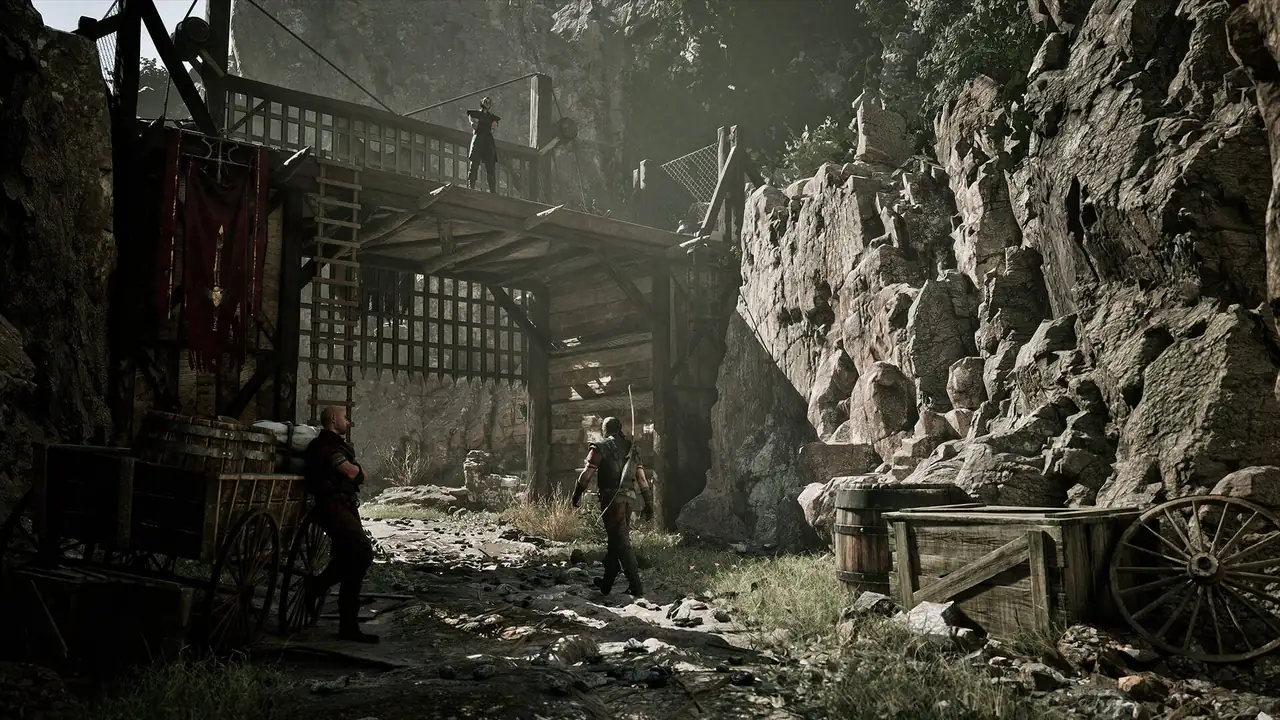
Official Gothic 1 Remake colony screenshot used beside Steam Deck settings advice
Official Gothic 1 Remake media. On Steam Deck, prioritize readability and stable frame pacing before visual extras.

低めまたは中設定から始める

まず安全なプリセットで始め、テクスチャや効果を一つずつ上げます。不安定なフレームペースは低画質より体験を悪くします。

画質より先にFPS上限を決める

30 FPS固定の方が、移動や戦闘で上下する無制限設定より快適な場合があります。

VRAMとテクスチャを見張る

公式要件はデスクトップGPUで多めのVRAMを想定しています。Deckでは高いテクスチャが読み込みに影響することがあります。

文字が読める範囲でFSRを使う

FSRや低解像度は性能に効きますが、所持品、クエスト文、字幕が読めることを優先します。

できれば高速ストレージへ入れる

Steam要件はSSD以上を示します。microSDでは移動中やロード時のカクつきを確認してください。

パッチ後に再テストする

ゲーム、Proton、SteamOS更新で最適設定が変わります。動いた設定を短く記録しておくと比較できます。

操作、UI、携帯プレイの快適さ

Steam Deckの問題は性能だけではありません。Gothic 1 Remakeには探索、戦闘、インベントリ、会話、マップ確認があります。起動しても、7インチ画面でメニューが読めるか、操作表示が分かるか、戦闘入力が安定するかで体験は変わります。

コントローラープリセットがあるならまず使います。違和感がある場合はSteam Inputでインベントリ、マップ、クイックスロット、カメラを背面ボタンやトラックパッドに割り当ててください。

  • UIスケールがあれば上げる。
  • 頻繁な操作を背面ボタンに割り当てる。
  • メニューやインベントリには右トラックパッドも試す。
  • DeckとPC間のクラウドセーブを確認する。
  • 温度、バッテリー、FPS傾向が分かるまで長時間プレイを避ける。
Official Gothic 1 Remake character screenshot used for handheld control and UI guidance
Official Gothic 1 Remake media used as an editorial visual for control and readability checks.

Visual checks

画面だけでは分からない確認点

Frame pacing

A screenshot can look fine while traversal stutters. Test a settlement, a road, and a combat scene before trusting the setup.

Readable UI

Inventory text, quest wording, store labels, and subtitles matter more than a sharp hero scene. Reduce scaling only if text stays clear.

Control rhythm

Combat timing and camera control need to feel predictable. If the default layout feels slow, adjust Steam Input before refund-window testing ends.

FAQ

FAQ

Check the live Steam store page and Steam Deck compatibility label. Compatibility can change after game patches, Proton updates, and SteamOS changes, so do not rely on old snippets.

It depends on current patches, Proton behavior, settings, and your tolerance for lower frame rates. Start with conservative settings and verify recent community reports before buying only for Deck.

Start with presets, shadows, effects, view distance, resolution scaling, and frame-rate cap. Keep UI and text readable before chasing extra visual quality.

Buy cautiously. Use Steam refund limits to test the opening area, a settlement, travel, combat, menus, battery behavior, and cloud save expectations.

Steam Deck is best if portable PC play matters and performance is acceptable to you. PS5 or Xbox Series X|S may be simpler if you want a console-first experience without tweaking settings.