
Steam Deck compatibility guide

Gothic 1 Remake on Steam Deck: Compatibility, Settings, Controls and Buy Advice

A practical Steam Deck guide for Gothic 1 Remake players: how to read the Steam listing, what the official requirements imply for handheld play, which settings to check first, and when to wait for current Proton or community reports before buying.

  • Primary intentSteam Deck playability
  • Best sourceSteam + current reports
  • Risk areaPerformance and controls
  • Related pagePC requirements

Short answer: treat Steam Deck support as a current-check decision

Gothic 1 Remake is a modern PC RPG with official Steam requirements that are heavier than classic Gothic. That does not automatically mean it cannot run on Steam Deck, but it does mean you should check the live Steam Deck compatibility label, recent Steam reviews, Proton reports, and patch notes before buying specifically for handheld play.

The safe buying rule is simple: if the Steam page currently shows a clear Deck status and recent players report stable performance at your target settings, the Deck can be a reasonable portable option. If the listing is untested, unsupported, or filled with fresh performance complaints, buy only if you also have a desktop PC fallback.

This guide does not replace live benchmark videos or ProtonDB-style reports. It gives you a decision framework: what to inspect, which settings to lower first, what control issues to expect, and when the official Gothic Remake PC and platform guide is the better page to read.

Before buying

Steam Deck decision checklist

Use these checks before treating Gothic 1 Remake as a handheld-first purchase.
Check Why it matters What to do
Steam Deck label Valve compatibility can change after patches and Proton updates. Open the Steam store page and check whether the game is Verified, Playable, Unsupported, or still untested.
Recent user reports Launch-week performance can differ from later patched builds. Read recent Steam reviews and community discussions filtered around Steam Deck, Proton, stutter, crashes, text size, and controller prompts.
System requirements gap The official PC requirements mention modern CPUs, 16-32 GB RAM guidance, strong GPUs, DirectX 12, and SSD/NVMe storage. Assume low settings first and avoid expecting desktop-level visuals or stable high frame rates.
Control comfort Gothic-style RPGs rely on precise movement, combat timing, inventory use, and menu reading. Check controller prompts, remap shortcuts, test trackpad or gyro if needed, and enlarge UI where the game allows it.
Refund fallback Handheld performance is hardware- and patch-sensitive. If Deck is your only platform, test early inside Steam refund limits before committing to a long playthrough.

Performance setup

Settings to test first on Steam Deck

Start conservative, then raise quality only after the opening areas feel stable.
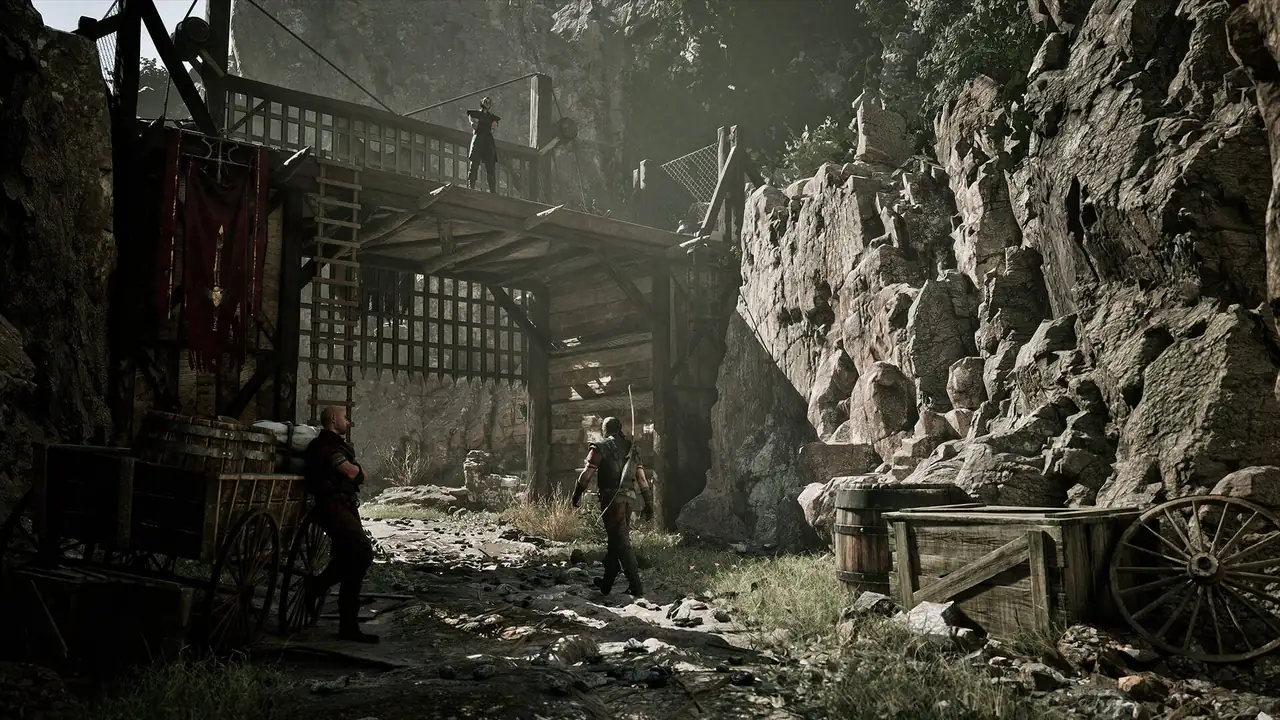
Official Gothic 1 Remake colony screenshot used beside Steam Deck settings advice
Official Gothic 1 Remake media. On Steam Deck, prioritize readability and stable frame pacing before visual extras.

Start with low or medium presets

Use the lowest practical preset first, then raise textures or effects one by one. A modern open-world RPG can feel worse from unstable frame pacing than from lower visual quality.

Cap frame rate before chasing image quality

A 30 FPS cap may feel more consistent than an uncapped target that swings during travel, combat, or settlement scenes. Test the cap in a busy area, not only in the first menu.

Watch VRAM and texture settings

The official requirements point to substantial VRAM on desktop GPUs. On Steam Deck, aggressive texture settings can compete with memory needed for smooth streaming.

Use FSR or lower resolution only if text remains readable

Upscaling can help performance, but small UI text and inventory labels matter in Gothic. Do not trade away readability for a slightly higher average frame rate.

Install to fast internal storage when possible

The Steam page highlights SSD or better storage guidance. If you use a microSD card, monitor stutter during traversal and loading.

Retest after patches

A game update, Proton update, or SteamOS update can change the best settings. Keep a short note of what worked so you can compare after major patches.

Controls, UI, and handheld comfort

The Steam Deck question is not only raw performance. Gothic 1 Remake has exploration, combat, inventory management, dialogue choices, and map reading. Even if the game launches, the handheld experience depends on whether controller prompts are clear, menus are readable at 7 inches, and combat input feels reliable.

If the game offers controller presets, start there. If a prompt or menu feels awkward, use Steam Input to map inventory, map, quick slots, and camera controls to back buttons or trackpads. Do not judge the whole game from the first fight until you have checked the input settings.

  • Increase UI scale if the game provides it.
  • Map frequent actions to back buttons instead of nested menus.
  • Use the right trackpad for precise menu or inventory navigation if needed.
  • Check whether cloud saves behave correctly between Deck and desktop PC.
  • Avoid long battery sessions until you know the thermal and frame-rate profile.
Official Gothic 1 Remake character screenshot used for handheld control and UI guidance
Official Gothic 1 Remake media used as an editorial visual for control and readability checks.

Visual checks

Three Steam Deck fit checks that screenshots alone cannot prove

Frame pacing

A screenshot can look fine while traversal stutters. Test a settlement, a road, and a combat scene before trusting the setup.

Readable UI

Inventory text, quest wording, store labels, and subtitles matter more than a sharp hero scene. Reduce scaling only if text stays clear.

Control rhythm

Combat timing and camera control need to feel predictable. If the default layout feels slow, adjust Steam Input before refund-window testing ends.

FAQ

Gothic 1 Remake Steam Deck questions

Check the live Steam store page and Steam Deck compatibility label. Compatibility can change after game patches, Proton updates, and SteamOS changes, so do not rely on old snippets.

It depends on current patches, Proton behavior, settings, and your tolerance for lower frame rates. Start with conservative settings and verify recent community reports before buying only for Deck.

Start with presets, shadows, effects, view distance, resolution scaling, and frame-rate cap. Keep UI and text readable before chasing extra visual quality.

Buy cautiously. Use Steam refund limits to test the opening area, a settlement, travel, combat, menus, battery behavior, and cloud save expectations.

Steam Deck is best if portable PC play matters and performance is acceptable to you. PS5 or Xbox Series X|S may be simpler if you want a console-first experience without tweaking settings.