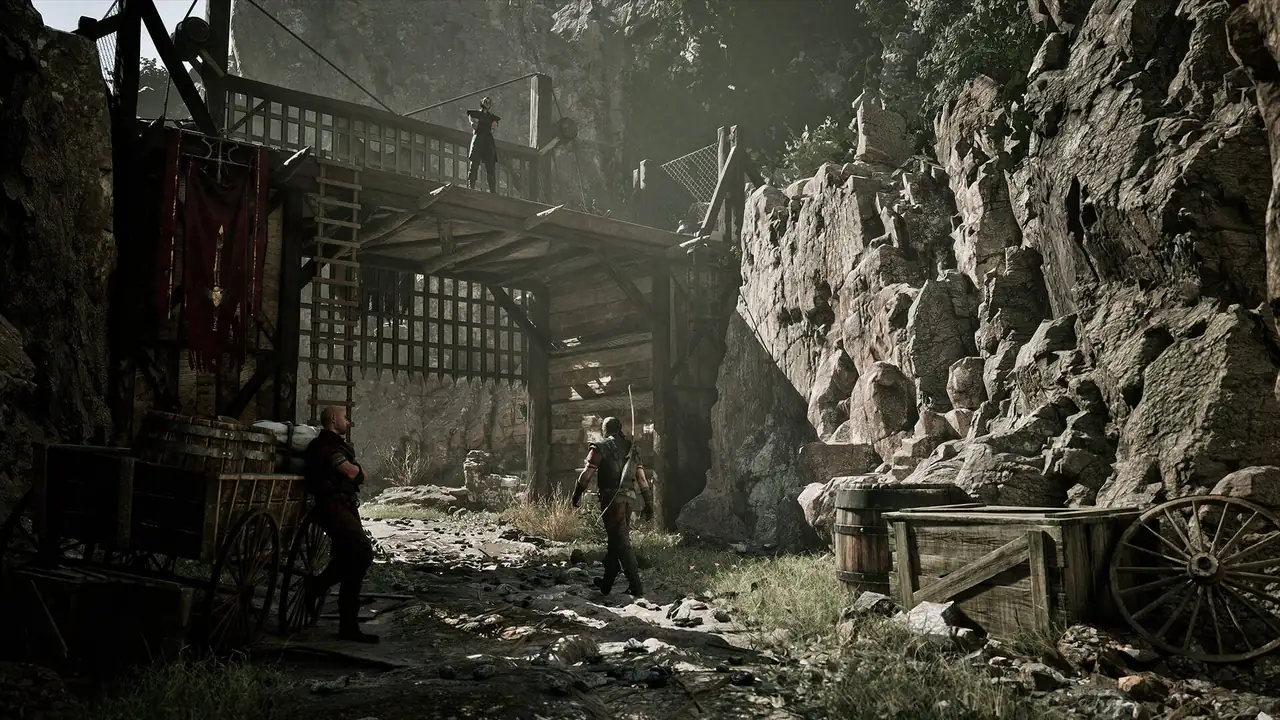
Mods and safety guide

Gothic Remake Mods Guide: Safe Install, Load Order and Best Uses

Use this guide before installing Gothic 1 Remake mods. It explains where to look, what to verify, how to protect saves, which mod types make sense early, and why a fan wiki should not mirror files or promise unofficial downloads.

  • Primary intentMods and modding
  • Best sourceNexus + community
  • Safety ruleBackup first
  • AvoidRepacked files

Short answer: start with small, reversible mods

Players looking for Gothic Remake mods usually need a different answer from buyers comparing PS5, keys, the demo, or system requirements. This guide therefore focuses only on finding trustworthy PC mod pages, installing changes safely, protecting saves, and recovering after patches.

The safest first move is not to install a huge overhaul. Start with a small quality-of-life mod, a lockpicking helper, a UI tweak, or a performance-related configuration that can be removed without changing your whole playthrough. Read the mod page, file date, comments, required game version, installation path, and uninstall notes before copying anything into the game folder.

Treat Nexus Mods, Steam discussions, and current community posts as discovery sources, not as automatic trust signals. A popular mod can still be outdated after a patch, conflict with another mod, or break a save. A new upload with no comments can still be fine, but it deserves a test profile rather than your only main save.

This page does not host Gothic 1 Remake mods, cracked installers, repacks, torrents, or patched executables. It links to source pages and gives a safe decision process. If a mod asks you to replace executables, disable security tools, download a password archive, or install a third-party launcher, skip it until there is strong community verification.

For players who only want the game itself, use the Gothic Remake PS5, Xbox and PC guide. This page is for players who already own the PC version and want to change convenience, visuals, performance, or minor gameplay behavior without corrupting saves.
Current modding reality

Use the table to separate real modding tasks from unsafe download intent.

Use the table to separate real modding tasks from unsafe download intent.
Intent Best action Risk level Source
Find PC mods Use Nexus or Steam discussions, then read comments, date, requirements, and uninstall notes. Medium Nexus Mods
Fix lockpicking friction Prefer a narrow lockpicking or input helper over a large overhaul if this is your only pain point. Low to medium Nexus Mods
Check patch compatibility Compare upload date and comment reports with the current Steam build before loading a save. Medium Steam
Look for console mods Do not assume PS5 or Xbox mod support unless Sony, Microsoft, THQ Nordic, or the game page confirms it. High Official Gothic site

What to install first

Best Gothic Remake mod types for a cautious first playthrough

These categories solve real problems without turning the first run into an unstable mod stack.
Official Gothic 1 Remake key art used beside mod category guidance
Official key art used to frame mod categories without copying third-party mod screenshots.

Lockpicking and input helpers

Good for players who like the RPG but dislike repeated input friction. Keep them narrow and check whether they change balance.

Performance and settings tweaks

Useful when they document exactly which file or setting changes. Avoid vague boosters with no explanation.

UI readability improvements

Font, contrast, prompt, and inventory readability mods can help without rewriting the game.

Visual reshades

Easy to test, but they can cost performance or make caves too dark. Screenshot before and after.

Minor gameplay convenience

Weight, camera, loot, or animation tweaks should be added one at a time so you know what changed.

Large overhauls

Save for a second playthrough. They are more likely to conflict with patches, quests, and future mods.

Safe install workflow

A clean mod workflow matters more than the exact mod manager. Gothic 1 Remake is a current release, so a patch can change scripts, data files, executable behavior, or save compatibility. Keep the game easy to restore.

Before changing files, decide whether this is a main save, a test save, or a disposable test profile. If a mod changes progression, lockpicking, difficulty, economy, or quest state, test it away from your only long-term playthrough.

  1. Update the game through Steam and launch it once without mods.
  2. Back up your saves and note the current game build date shown by Steam or the update page.
  3. Create a clean folder note: which mod, version, file date, source URL, and install path.
  4. Install one mod, launch the game, load a test save, and check the exact feature it changes.
  5. If stable, play for at least one normal session before adding another mod.
  6. After any official patch, disable complex mods first, read mod comments, then re-enable one at a time.
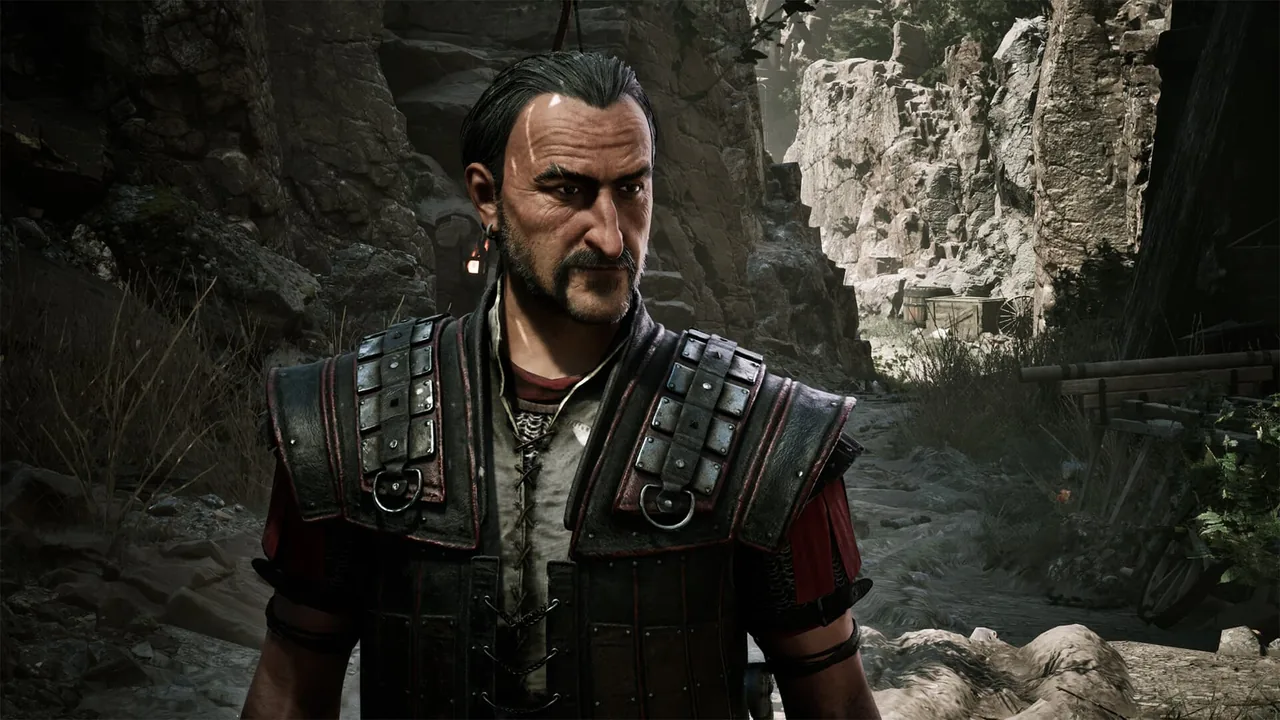
Official Gothic 1 Remake character screenshot used for safe mod installation advice
Official media used for installation-safety guidance; verify actual mod pages before downloading.

Compatibility checks before every patch

Check Why it matters
Save backup A working backup is the fastest recovery when a mod breaks progression or a patch changes files.
Mod date Older uploads may still work, but comments after the newest patch are more useful than install counts.
File scope A texture, config, script, and executable replacement carry very different risk.
Uninstall notes A good mod explains how to reverse the change. Missing removal steps are a warning sign.
Community reports Recent comments can reveal crashes, broken quests, language issues, and load-order conflicts.

FAQ

Gothic Remake mods FAQ

They can be safe when you use trusted source pages, read recent comments, back up saves, and avoid executable replacements from unknown mirrors. No mod is automatically safe just because it is popular.

Use established source pages such as Nexus Mods or community-linked project pages. Avoid reposted archives, cracked installers, password-protected downloads, and files that ask you to disable security software.

Small reversible quality-of-life mods can be reasonable. Large overhauls are better for a second playthrough because they can change balance, quests, and patch compatibility.

Do not assume console mod support. Treat Gothic Remake mods as a PC topic unless official PlayStation, Xbox, THQ Nordic, or game pages confirm support.

Back up saves, disable complex mods, read mod comments for the new patch, then re-enable one mod at a time. If a save fails, restore the backup rather than stacking more fixes.

Yes, if your only issue is input friction. Choose a narrow mod that explains what it changes instead of installing a broad overhaul just to solve one mechanic.