PC troubleshooting guide

Gothic 1 Remake Save Location: Where to Find and Back Up Save Files

Use the common Windows path as a starting point, then verify the folder after creating a fresh save. This guide separates local files, Steam Cloud, launcher differences, and safe backup steps.

  • Primary platformWindows PC
  • Main intentFind local saves
  • Best first actionMake one fresh save
  • Before mods or patchesBack up first

Quick answer: where are Gothic 1 Remake saves?

For a Windows PC installation, the common local save location is C:\Users\<username>\AppData\Local\Gothic1Remake\Saved\SaveGames. Replace <username> with your Windows account name. The folder may remain hidden until the game has created at least one local save, so do not assume the path is wrong before saving once and closing the game normally.

The fastest way to check is to press Win+R, enter %LOCALAPPDATA%, and then open Gothic1Remake, Saved, and SaveGames. If you use Steam Cloud, the cloud copy and the local folder are related but not identical: Steam can synchronize a local save, while the files you need to copy, inspect, or attach to a bug report are still local files on your PC.

This page is intentionally PC-focused. PlayStation 5 and Xbox saves are managed through console storage and platform cloud systems rather than this Windows folder. If the directory is missing, follow the troubleshooting order below instead of downloading a random save archive or deleting configuration files.
1. Locate the folder

Common Windows save path

Use this path for the installed PC game, then confirm that the newest file changes after you make a test save.

Typical local path

C:\Users\<username>\AppData\Local\Gothic1Remake\Saved\SaveGames

AppData is hidden by default. You can paste %LOCALAPPDATA% into File Explorer or the Win+R dialog, then open the remaining folders manually. Do not replace <username> with the literal angle-bracket text.

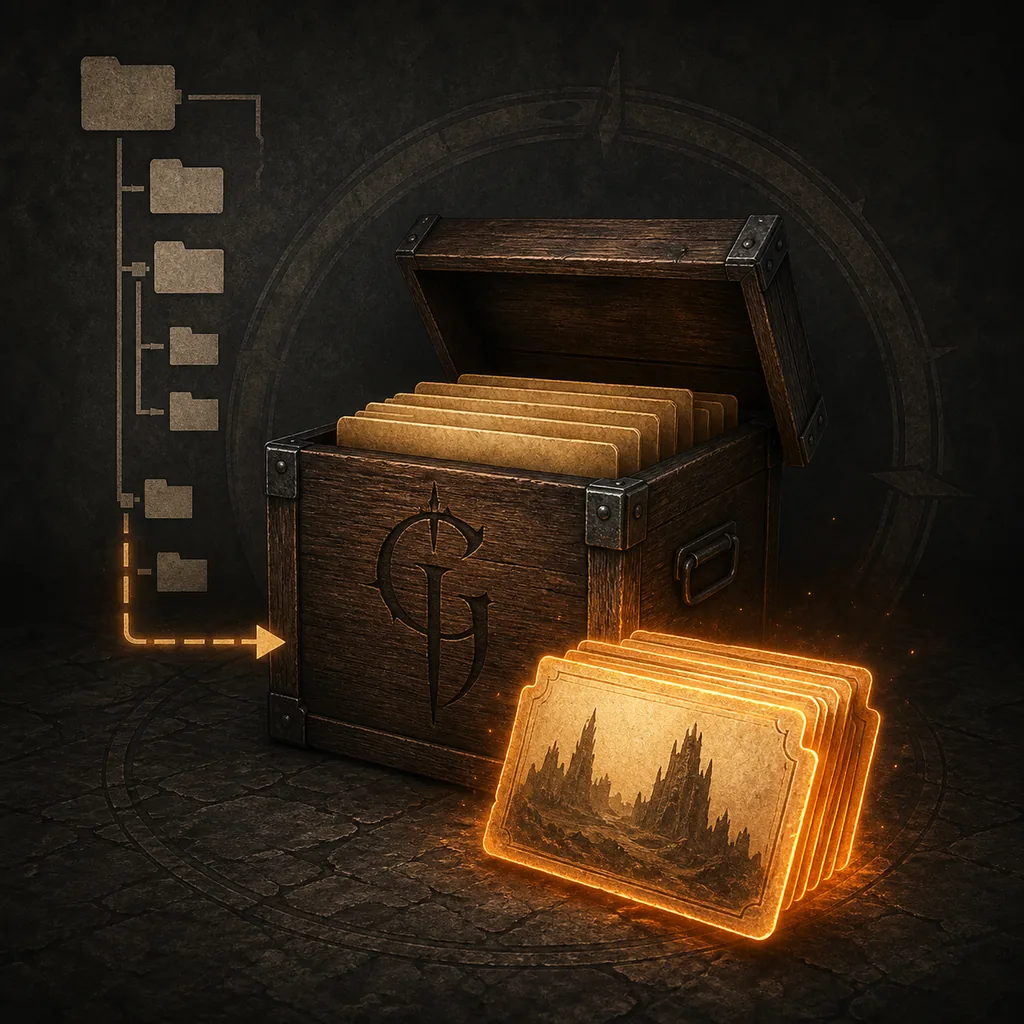
Illustrative diagram of a Gothic-themed folder tree leading to local save files
Illustrative diagram, not a real Windows screenshot: the important path remains visible HTML text above.

2. Know which storage you are checking

Local files, cloud sync, and console storage

The same game can expose different recovery options depending on the platform and launcher.
Storage What to check Practical note
Windows PC C:\Users\<username>\AppData\Local\Gothic1Remake\Saved\SaveGames Start here for manual backup, file inspection, or bug-report attachments.
Steam Cloud Steam account sync plus local SaveGames folder Cloud sync is not a substitute for a separate backup before mods, patches, or manual replacement.
Other PC launcher Check the same local app-data path and the launcher's cloud settings Do not assume a launcher changes the game's save directory without testing a new save.
PlayStation 5 / Xbox Console-managed storage and platform cloud The Windows path does not apply; use the console's own backup and restore controls.

3. Protect the files

How to back up Gothic Remake saves safely

A backup is useful only when it is separate, dated, and made before the risky change.
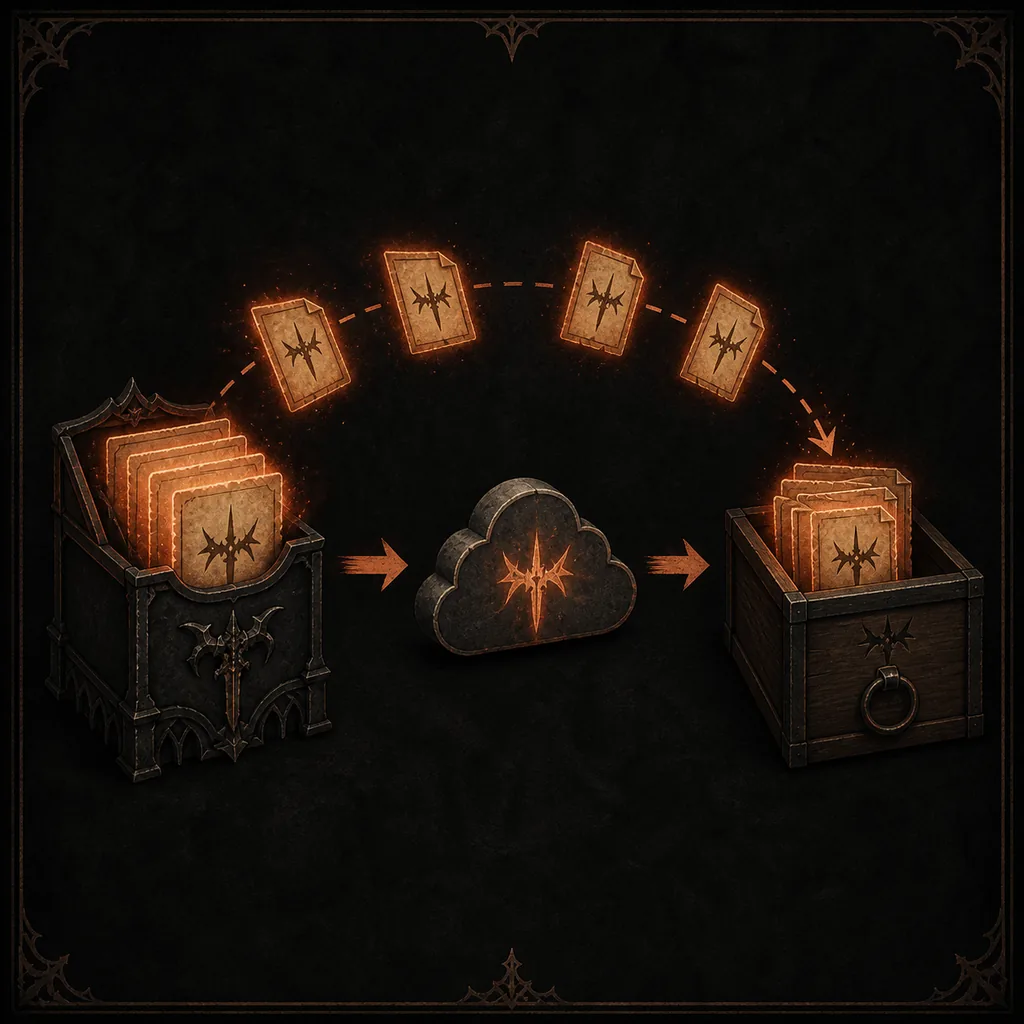
Illustrative diagram showing local save files copied through cloud sync to a separate backup archive
Illustrative backup flow: keep a separate dated copy instead of relying on one live folder.

Back up the whole SaveGames folder rather than copying a single file whose name you do not recognize. Keep the original folder untouched until the backup opens or at least contains the newest timestamp. A separate folder on another drive is more useful than a second copy sitting beside the original.

Before a large mod, a major patch, a cloud-conflict decision, or a manual save replacement, exit the game and wait for Steam to finish any visible sync. The goal is to avoid copying a half-written file or letting an older cloud state overwrite the backup you meant to keep.

  1. Close the game Leave the main menu and exit fully so the save files are no longer being written.
  2. Copy the folder Copy SaveGames to a dated folder such as Gothic1Remake-save-backup-before-mods.
  3. Keep two checkpoints Retain a recent backup and an older known-good backup instead of overwriting one copy repeatedly.
  4. Change one thing Install one mod, apply one recovery step, or test one patch state before changing another variable.
  5. Restore carefully Close the game, move the current folder out of the way, copy the backup back, and resolve any Steam Cloud conflict deliberately.

4. If the folder is missing

Troubleshoot the path before touching the saves

Most missing-folder reports are caused by hidden directories, no completed save, a different Windows account, or a sync/launcher assumption.

Make one fresh manual save

Load the game, create a clearly named test save, exit normally, and search again. A folder that did not exist before the first save may now be created.

Open LocalAppData directly

Paste %LOCALAPPDATA% into File Explorer instead of browsing from Documents. AppData is not normally visible in the user profile view.

Check the Windows account

If more than one account is used on the computer, confirm that you are checking the profile that actually launched the game.

Separate local and cloud symptoms

A cloud conflict, rollback, or missing local file can have different causes. Record the timestamps and choose the newest known-good copy before accepting a sync prompt.

Temporarily isolate mods

If saves disappear or fail after a mod change, keep the backup, read the mod's patch notes, and test the unmodified game before deleting anything.

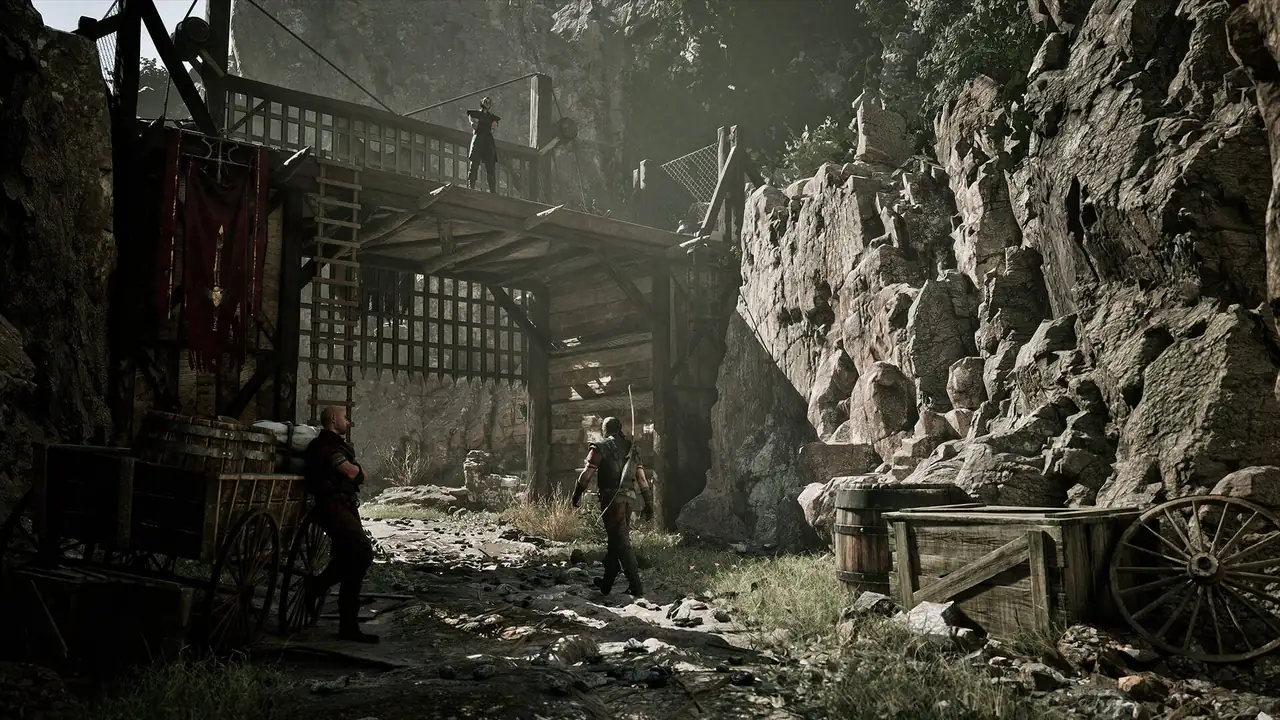
Official Gothic 1 Remake screenshot of a Mining Colony route used as contextual game media
Official Gothic 1 Remake media used for context; it is not a screenshot of the save directory.

What not to do when a save is missing

Do not download a random save archive and overwrite the folder before you know whether the original files are still available. A recovery attempt can remove the evidence you need for a bug report. Keep the original, make a copy, and change one variable at a time.

The search phrase save editor describes a different intent from save location. Editors and large mods may change or invalidate files, so they belong in a separate safety decision rather than in the basic path instructions.

  • Before a patch Read the current patch notes and keep a dated backup outside the live game folder.
  • Before a mod Check the mod's compatibility notes and back up both saves and any configuration files it tells you to edit.
  • During a cloud conflict Do not click through automatically. Compare local timestamps, preserve a copy, and then select the state you actually want.
  • For a bug report Share only the files and details requested by the official support or trusted community channel; remove private account information from screenshots and paths.

FAQ

Gothic 1 Remake save location FAQ

The common Windows path is C:\Users\<username>\AppData\Local\Gothic1Remake\Saved\SaveGames. Replace <username>, use %LOCALAPPDATA% to open the hidden folder, and create one fresh save if the directory does not exist yet.

No. Steam Cloud can synchronize a local save, but the files you manually copy or inspect are still local files. Treat cloud sync as an additional recovery layer, not as your only backup.

Make a fresh manual save, exit normally, open %LOCALAPPDATA%, confirm the Windows account, and check for launcher or cloud differences. Do not delete folders or overwrite files before you have a backup.

Usually you can test a copied SaveGames folder on another compatible PC, but keep a backup, close the game during the copy, and be ready for a Steam Cloud conflict. Platform and build differences can affect compatibility.

No. The Windows path is for PC. PlayStation 5 and Xbox use console-managed storage and cloud controls, so follow the current platform's own backup and restore flow.

Not as a first step. A save editor is a separate tool and can make recovery harder if used before preserving the original. Find and copy the existing files, then check official or trusted community guidance for the specific problem.

Keep the original save, note the game build, platform, reproduction steps, and relevant timestamps, then use the official support route or a trusted community discussion. Remove private account details before sharing files or screenshots.